Check your work
Automated accessibility testing and checks for every component in Pattern Dump: the Diagnostics tab while you work, and pd audit for the whole style guide.
The badge is styled. Pattern Dump has been checking it all along: every render is checked against the schema, the rendered markup against HTML's content model, and its accessibility with axe. You see the findings in two places: the Diagnostics tab, for the component on the Stage, while you work, and pd audit, for the whole style guide at once.
Each finding has a severity: error, warning or info. Errors are what fail an audit.
The Diagnostics tab
Open the badge in the workbench and choose Diagnostics in the Console, below the Stage. The tab lists what Pattern Dump finds in the component on the Stage, grouped by where it comes from, the group with the worst finding first:
- Render/Template
- Schema/Data
- HTML validation
- A11y
- Other
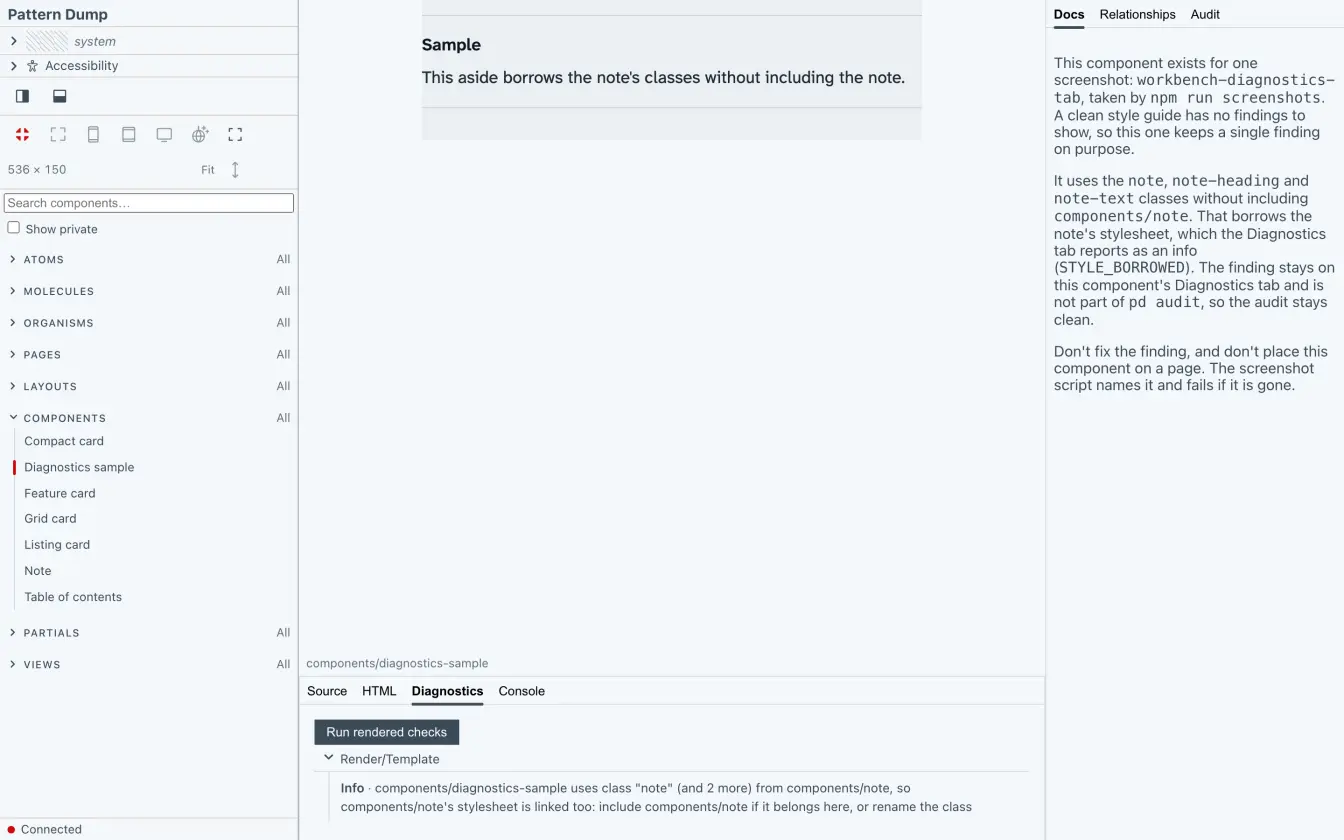
The tab's marker counts the errors, or the warnings when there are no errors. Info isn't counted.
Some accessibility checks need a browser: they run with axe in the preview, and only while the Diagnostics tab is open, which says "running rendered checks…" until they are done. A result axe can't decide is listed under "Needs review", with no severity and not counted.
Make a finding
Take the label out of badge.json:
{
  "tone": "info"
}
The schema requires label, so the Diagnostics tab of atoms/badge now shows an error under Schema/Data:
Required field "label" is absent in the merged data
The warning variant brings its own label, so it stays clean. Put the label back before the next step.
What Pattern Dump checks
Every finding has a kind, written in capitals, which tells you what to fix:
RENDER_ERROR- An error: the template throws. The message is the error's own, with the file and line when the error knows them.
UNFILLED_REQUIRED,SHAPE_MISMATCH- A required field is missing, an error; a value of the wrong type, a warning. Tags in the sample data written as plain strings, where the template reads them as objects, are an error.
DATA_INVALID,SCHEMA_INVALID- Errors: a
.jsonor a schema that isn't valid JSON, or a schema that Pattern Dump can't use as it is, such as one that misuses its schema extensions or names a property like a helper. HTML_INVALID- A warning: an element where HTML's content model doesn't allow it.
A11Y- One finding per element that fails an axe rule. Critical and serious are errors, moderate and minor are warnings.
HELPER_SHADOW- A warning:
{{<name>}}calls a helper of that name, so the data field of the same name is never read. HANDLE_COLLISION- An error: two components share a handle, and one is quarantined, left out of the tree until one of them is renamed.
STYLE_BORROWED- An info: the template uses a class another component owns without including it, as in the picture above.
No findings means no defects a machine can find without a browser, not that a component is fully accessible or correct. Colour contrast, for one, needs a rendered page.
Run pd audit
The Diagnostics tab looks at one component. pd audit looks at all of them, every variant included, each under its own id. Run it in a terminal, in your project's folder:
npx pd audit
It prints a report in markdown and writes it outside your project, to Pattern Dump's folder in your system's temporary folder. The report opens with a headline and the render outcomes (ok, blank or error), then three sections:
- Rules by blast radius
- Each rule that found something, with the number of components its findings hit and how often it fired. A rule's blast radius is that number of components.
- Per component
- Each component with findings or a render that wasn't ok, and its findings.
- Scope
- What the audit covers and what it doesn't.
The audit leaves out three things the Diagnostics tab shows: STYLE_BORROWED, the accessibility checks that need a browser, and a misplaced layout marker. A quarantined component is in it, as an entry with its HANDLE_COLLISION error.
After the report come the audit's own lines:
[pd audit] re-audited <n>, reused <n> (of <n>).
[pd audit] serialized graph: <path>
[pd audit] report: <path>
[pd audit] <n> defects across <a>/<n> components.
With the starter's site, Pattern Dump also prints a line that starts [dev-server] FLATTENED: 2 cluster(s) across 5 components: some of the starter's layouts are copies of one template, and the line asks nothing of you.
pd audit reuses a component's result while nothing it depends on has changed, so the first line says how many it checked again. What the audit checks again explains when.
What fails the audit
pd audit exits with 1 when any finding is an error, and with 0 when there are no findings, or warnings only. The last line says why it failed:
[pd audit] failed: <n> error(s) found (warnings alone don't fail it; --strict makes them fail it too).
With the badge's label missing, that is the line you get. --strict fails the audit on any finding, warnings included:
npx pd audit --strict
It exits with 1 too when the audit itself fails, and prints [pd] Error: with what went wrong.
For a script or CI, --format json prints the report as JSON and nothing else, and sends the [pd audit] lines to the error output. An error still exits with 1.
The Audit tab
The workbench shows the same audit in the Inspector's Audit tab: the headline and totals, Rules by blast radius, Per component and the Scope.
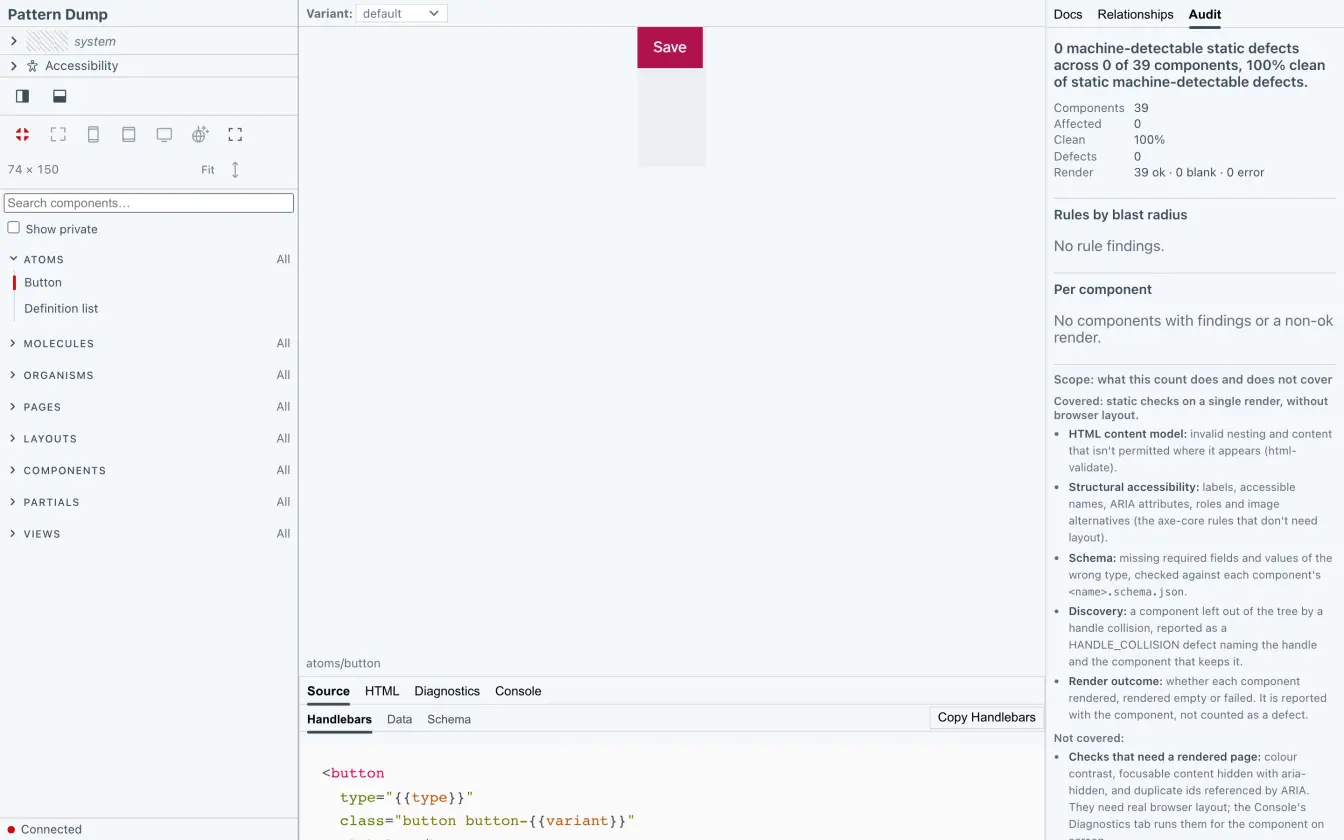
pd build writes the audit into the static workbench too, so the published Audit tab shows a snapshot, headed with the date it was taken. --no-audit leaves it out.
Your checked style guide
The badge is clean again, and you know where to look when it isn't. Next, add a page to your site, with the badge on it.